Growsearch can now answer questions from your blog
Growsearch can now use your blog posts to answer customers' questions, and you can choose where search opens and how products look.
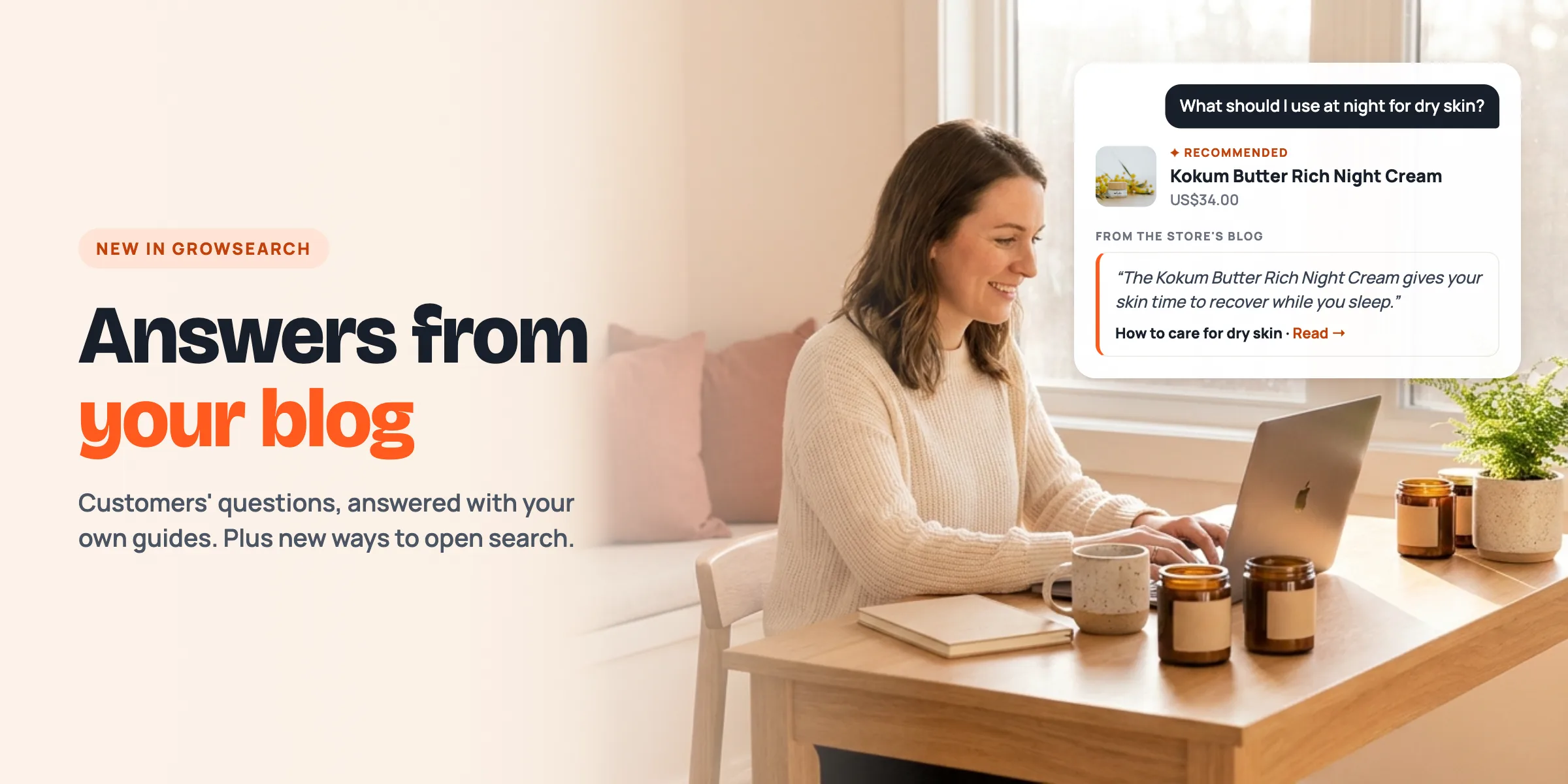
This update brings two things to Growsearch. Your search assistant can now answer customers' questions using your blog posts. And you can choose where the search panel opens on your store, along with how products look inside it.
Here is what changed, what you need to do, and where to find each new option.
Answers from your blog
Customers often ask questions that your product pages don't answer. How do I use this? What's the difference between these two? Which one is right for a beginner? If you've written blog posts about these things, Growsearch can now use them to answer.
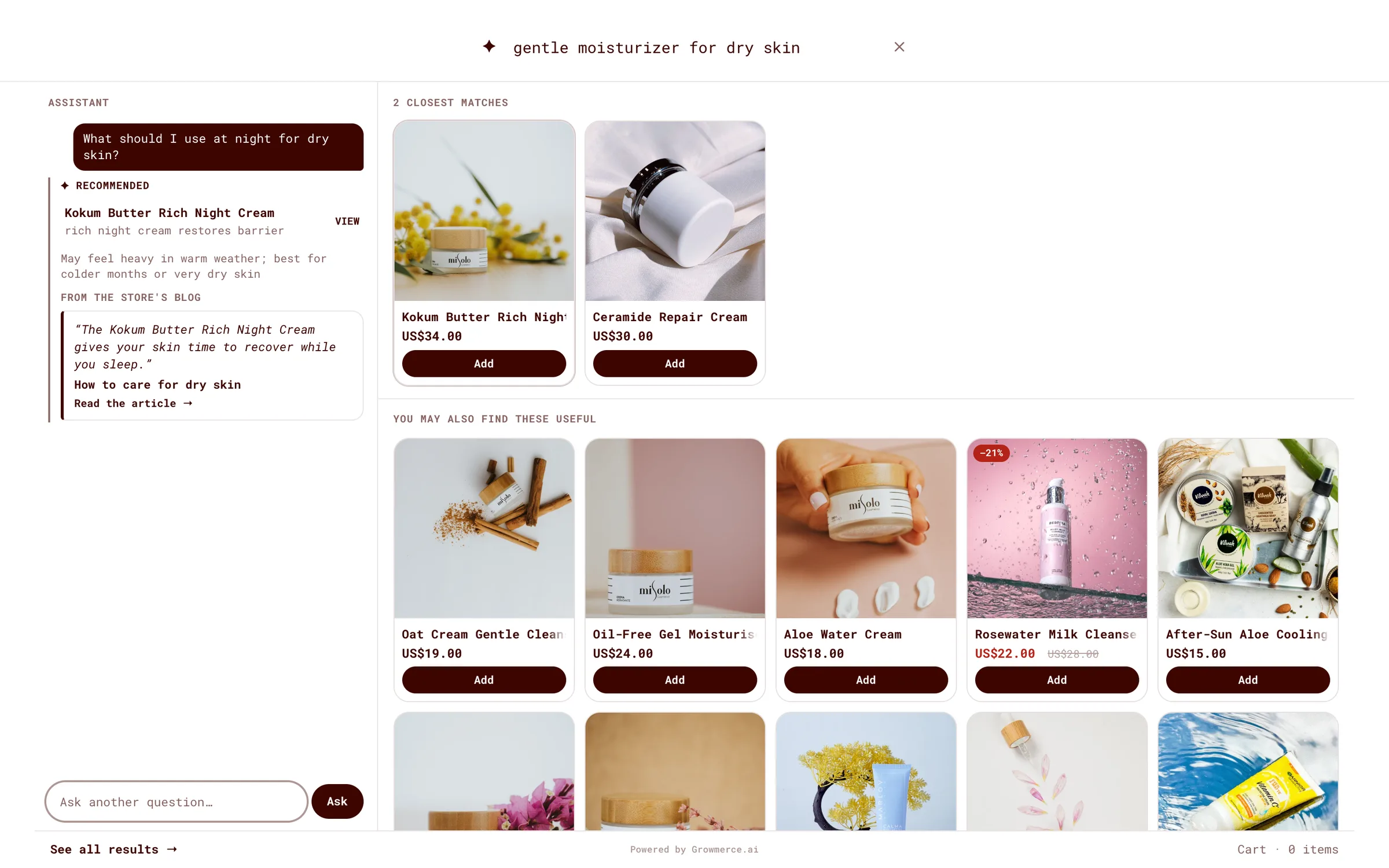
When an answer comes from one of your posts, the post is shown right under the answer, with a link to read it. When the answer relies on a specific sentence from the post, that sentence is quoted too, exactly as you wrote it. Growsearch never shows a quote that isn't word for word in your post.
A few things stay the same:
- Product suggestions still come only from your products. Your blog helps answer questions. It never adds products that aren't in your store.
- Only published posts are used. Drafts and hidden posts are never read. A post you schedule for later is picked up when it goes live.
- Unrelated posts stay out of the way. If none of your posts are about what the customer asked, the answer comes from your products alone.
What you need to do
Growsearch needs your permission to read your blog. This is a one-time step:
- In your Shopify admin, open Apps and then Growsearch.
- Shopify shows a screen asking you to approve a new permission to read your online store's pages. Approve it.
- That's it. Growsearch reads your published posts in the background.
After that, you don't need to do anything when you write or edit a post. New posts, edits and deleted posts are picked up on their own, usually within seconds.
To see which posts Growsearch has read, open Growsearch and click Product index in the menu. The Blog articles section lists your posts and when they were last checked. If something looks out of date, use Refresh blog articles to check them all again.
If you have no blog posts yet, nothing changes. As soon as you publish one, Growsearch can start using it.
Choose where search opens
Until now, search opened in the middle of the screen. You can now pick from four layouts:
- Middle of the screen. The layout you have today. Nothing changes unless you pick another one.
- Right side. Search slides in as a tall panel on the right, and your store stays visible beside it.
- Left side. The same, on the left.
- Full screen. Search covers the whole page. Results use the full width, so wide screens show more products in each row: three on a small laptop, five or six on a large monitor.
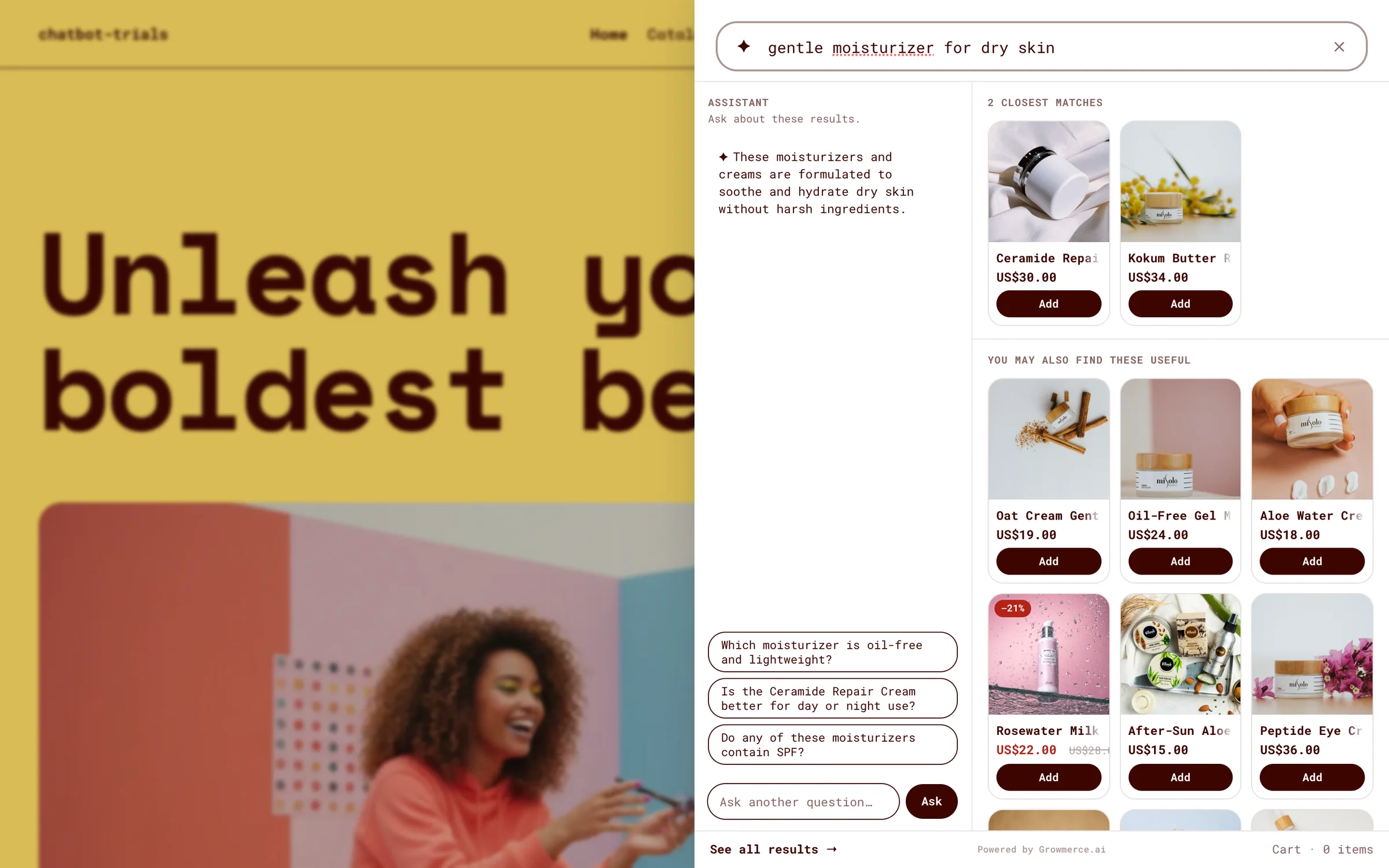
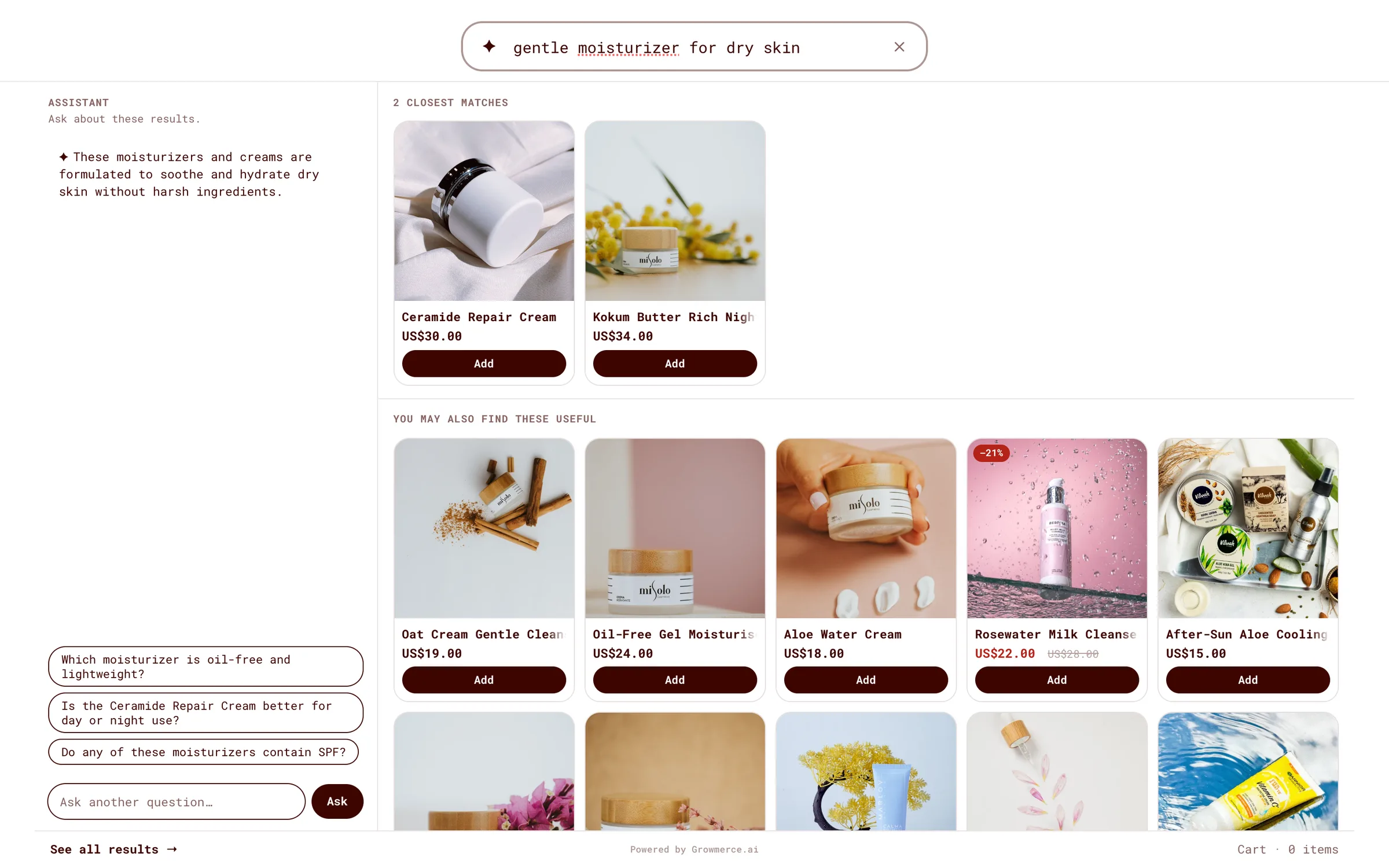
These layouts look the same on every theme, so you can switch between them and compare without anything breaking. On phones, search always opens full screen, whichever layout you pick, because that works best on a small screen.
How to change it
- In your Shopify admin, go to Online Store, then Themes, and click Customize.
- Open App embeds and select Growsearch Takeover.
- Under Placement, choose Centred overlay (middle of the screen), Right drawer, Left drawer or Full screen.
- Click Save, then open your store and try a search.
Choose how products look
In the same place, the new Card style option changes how each product appears in search results:
- Framed. Each product sits in a light frame. This is the default, and a lighter version of the look you had before.
- Clean. No frame, with the brand name shown above the product name.
- Quick add on photo. The add-to-cart button sits on the corner of the product photo. Each product takes less space, so more fit on screen.
- List. One product per row, like a simple list.
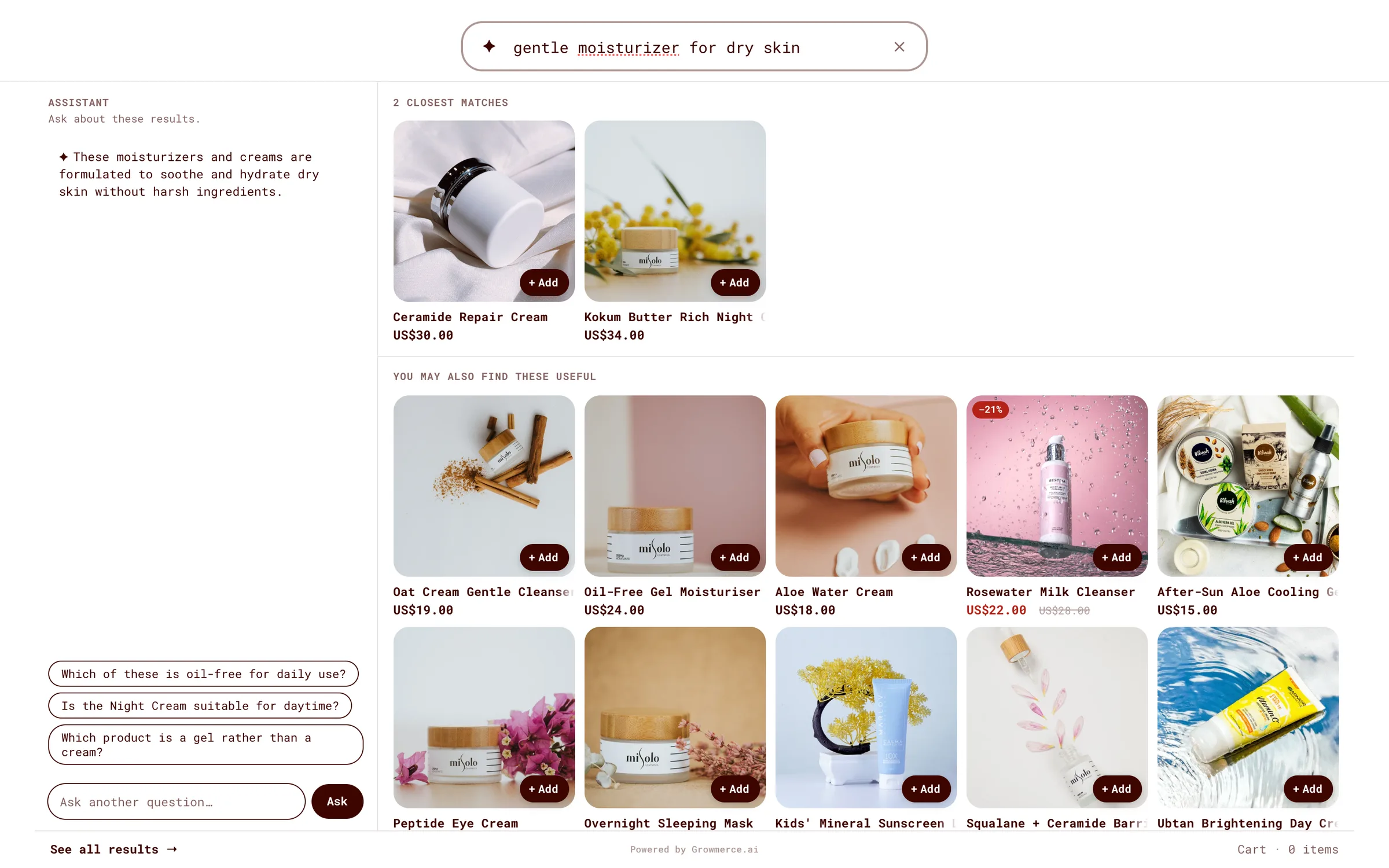
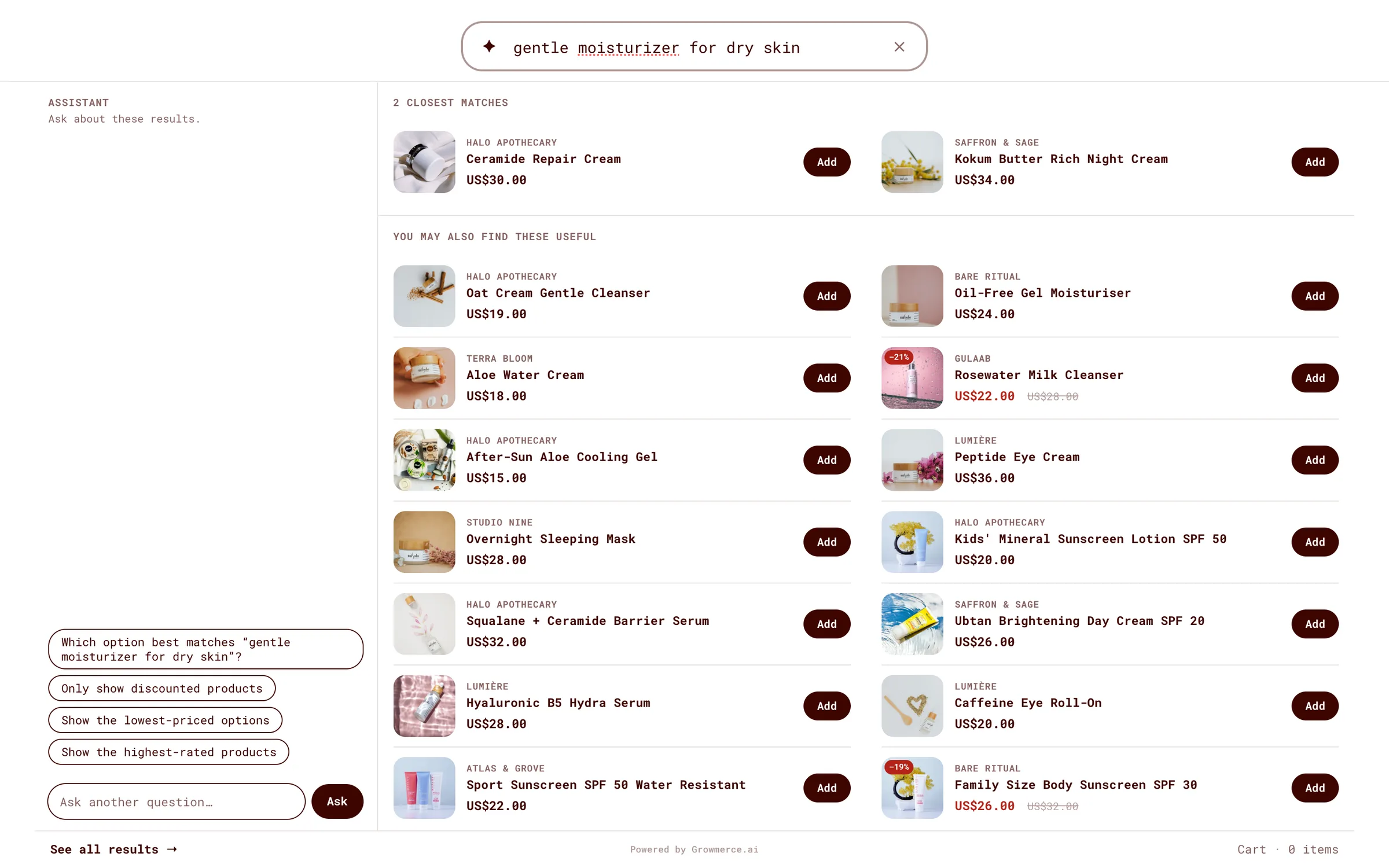
Every style now shows sale prices with the old price crossed out, a sale or sold-out label on the photo, and a faded photo for products that are sold out.
Rounded or square
The new Corners option sets how rounded search looks: the search bar, the panel, product cards and buttons all change together, so they always match. Choose Square, Slightly rounded, Rounded or Pill, or leave it on Match my theme to follow the shape of your store's own buttons.
This replaces the separate corner settings from before. If you had changed those, search now follows your theme until you pick a Corners option.
Small fixes you might notice
- Button labels stay readable on light-coloured buttons, instead of turning white and disappearing.
- Long product names no longer get cut off mid-word. They wrap to two lines, or scroll when a customer points at them if you've turned scrolling names on.
- Products in the "You might like" row show in-stock items first.
One layout retired
We removed the Match my theme (beta) layout, which tried to place Growsearch inside each theme's own search box. It depended on how each theme was built and didn't work reliably on some of them. The new side and full-screen layouts do the same job and work on every theme.
If you were using it, search now opens in the middle of the screen. You don't need to do anything, but you might like one of the side layouts instead.
Questions?
Reply to any Growsearch email. A person reads every message.